



We frogs offer so many blog posts about Lightning Lane Multi Pass and Single Pass. We've shared all our high-level tips and tricks and frequently asked questions. We've told you how, where or why you should even buy a Lightning Lane. But we never really spelled out how to get started with booking a Lightning Lane. Recent changes to the Disneyland app made us realize that it's not as easy or intuitive as it used to be. We always hop in to help other park guests who seem to struggle with getting started in the park. If the froggy experts sometimes struggle with booking a Lightning Lane at Disneyland (and locating those booked Lightning Lane selections in the Disneyland app), then Disneyland beginners are going to need some help, too!
FAQs
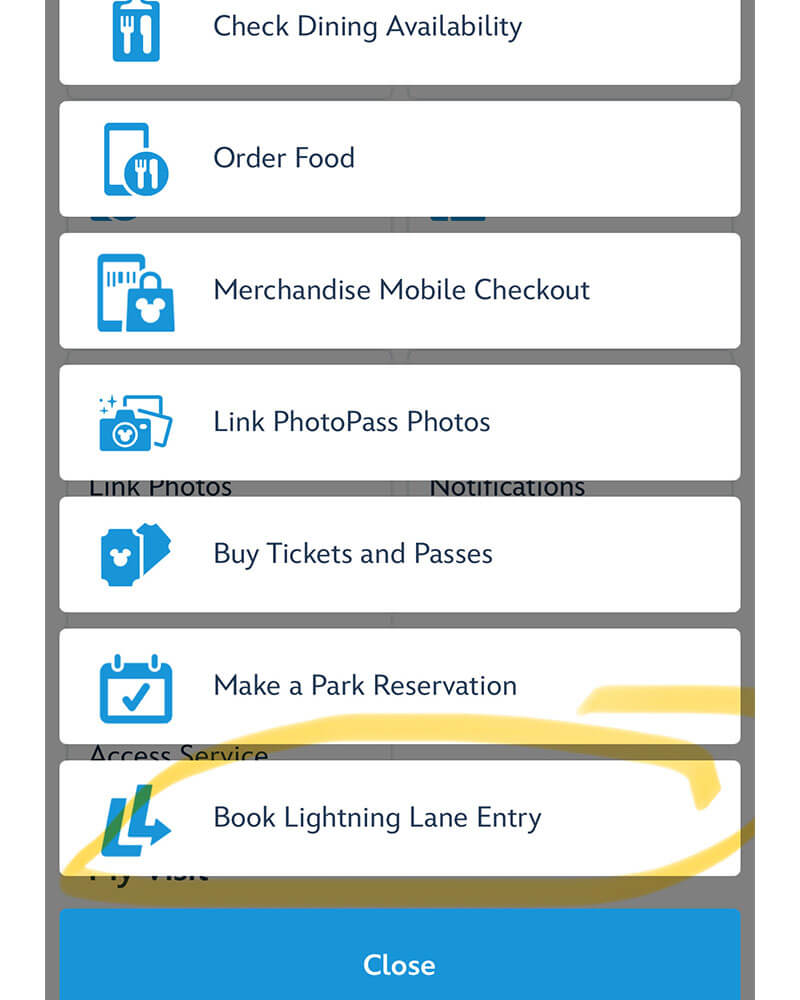
- How do I book a Lightning Lane? If you have Lighting Lane Multi Pass (save on tickets with Lightning Lane Multi Pass through Undercover Tourist) or you want to book a Single Pass attraction, you can book in the Disneyland app by tapping the "+" sign on the bottom of the home page and then "Book Lightning Lane Entry." Select the park and ride you want. Then select the guests who want to ride and continue until you confirm your selection.
- Where do I find and redeem the Lightning Lanes I've booked? Locate your Lightning Lane selections by tapping on "My Plans" and then "redeem." You can also redeem with a MagicBand+ or by scanning park admission.
- Where do I find my free hotel guest Lightning Lane? You can find your free Hotel Guest Redemption by tapping "My Plans." You must tap "redeem" and scan the code.
- Which Lightning Lanes should I book first, and which ones should I save for later? Some ride Lighting Lanes fill up faster than others. Hop over to the Undercover Tourist post on which Lightning Lane to pick first to find the right strategy for you.
- How do I modify a Lightning Lane Multi Pass? If you want to try to get an earlier or later ride time, or change to a different ride, tap "modify." Pull down on the screen to refresh if you want to see if a better time appears. You cannot modify to the other park. Modifying does not reset the 2-hour waiting period. Canceling does.

How to Book a Lightning Lane at Disneyland

Let's break it down for anyone who hasn't used Lightning Lanes, hasn't used them in a few months or is familiar with Lightning Lanes at Disney World but not at Disneyland. Whether you are a beginner or someone in need of a refresher, here's how to book a Lightning Lane.
 We are assuming you already have Lightning Lane Multi Pass tickets and have entered a theme park. (At Disneyland, you must have entered a theme park each day in order to start making Lightning Lane selections.) Let's go!
Open the Disneyland App
First of all, you need to download the latest version of the Disneyland app. You should be set up with all your tickets linked. If you need help with that, hop over to our Disneyland app post to get started.
Go to the "Wait Times & Showtimes" Page (formerly the "Tip Board")
There are two ways to get to the "Wait Times & Showtimes" screen to book:
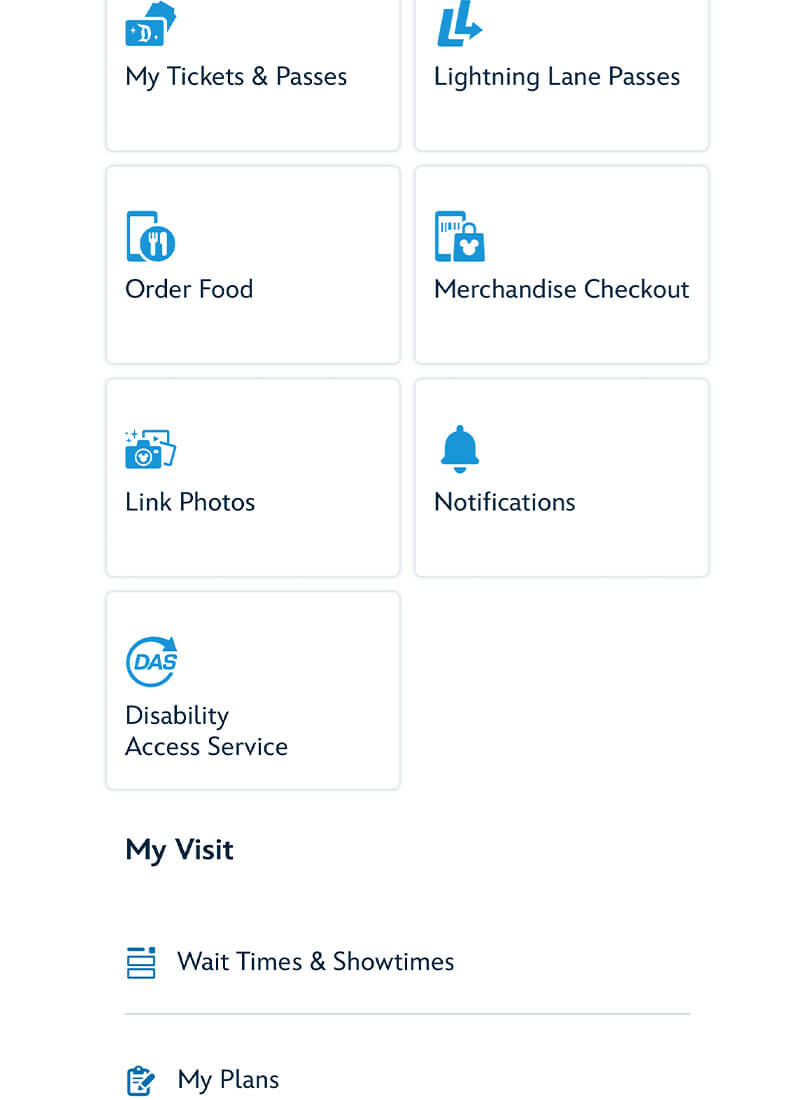
- The + sign at the bottom of the screen. Tap that and then select "Book Lightning Lane Entry."
or
- The three horizontal lines in the lower right-hand corner will take you to the menu screen. Select "Wait Times & Showtimes."
The "Wait Times & Showtimes" page lists all the rides in the parks with wait times. You can select "Change Park" to select a ride in the other park if park hopping. A little further down, you can click the toggle button if you want to make it show only Lightning Lane Multi Pass and Single Pass experiences. That makes it easier to scroll through your options. As of June 9, 2026, you can select rides in either park any time, as soon as you enter a park.
Scroll through the "Wait Times & Showtimes" to find the ride you want. They are listed in alphabetical order. At Disneyland, it only shows you one time (a one-hour window), which is the next available time slot. If you like the time for that ride, tap "select," and it will take you to a page. Pay attention here, as the times can change on you due to changing availability. The time could be later or even earlier than you originally thought. Confirm that that time still works for you and finalize your selection.
If you don't like the time or your plans change, you can modify it to a different time for that ride or for a different ride in that same park. Putting your finger on the screen and pulling down will refresh the available times. You'll want to modify rather than cancel your plans because modifying does not reset the two-hour clock for the waiting period to book again. Canceling does.
When booking, you can modify your party if not all the people in the party want to ride.
If you are booking a Lightning Lane Single Pass, you'll book in a similar way. You'll have to pay to book the Lightning Lane for that ride individually. You cannot modify that ride window. However, if the Single Pass ride breaks down in your selected window, after a few minutes, you’ll see a change in your app under "My Plans." The pass will change to allow you to come back any time that day before the ride closes for the day. (Rise of the Resistance closes early each day, so check the app for hours.) If you are unable to ride before you leave the park, you’ll automatically receive a refund to your credit card about two to five days later.
Making Your Next Selection
You can make your next selection either after you have redeemed the first one, the first selection's window has expired or after two hours have passed from when you booked, whichever comes first. We like to set alarms to remind ourselves when we can book the next Lightning Lane.
There is a green bar on "Wait Times & Showtimes" that tells you when you can book your next Lightning Lane; however, it is not always accurate. Let's say not all members of the party are booked on the same rides. Some party members may be eligible to book now, while others have to wait until they redeem a Lightning Lane. So, we find that setting alarms is the safer way to go.
How to Find Your Lightning Lane Selections and Multiple Experiences Passes
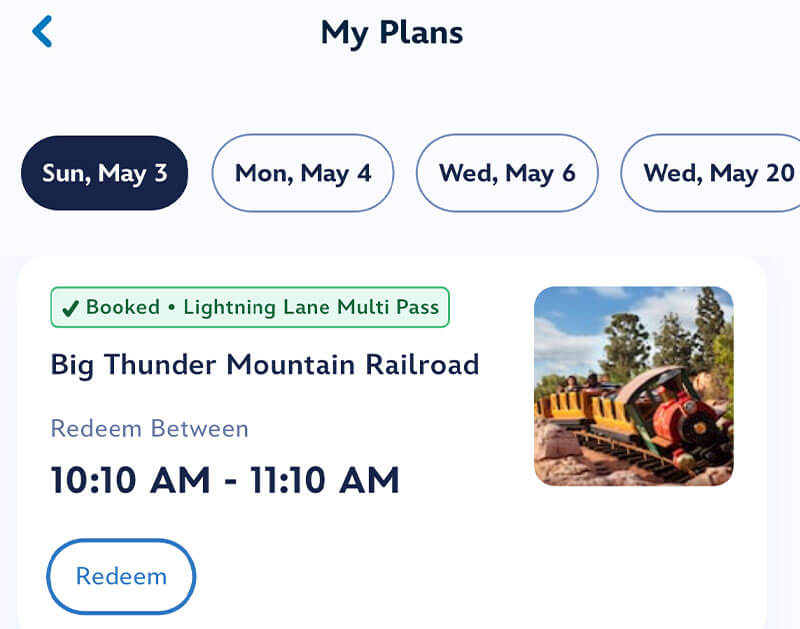
You've made the Lightning Lane selection. Now, where is it? How do you redeem it? And what if the ride breaks down in your ride window? What do you do then?
Finding Your Lightning Lane Selections
Hop over to the "My Plans" tab. There, you will see any Lightning Lanes you have booked as well as dining reservations or other plans you've made. You can access the "Redeem" button from this screen 5 minutes before your ride window starts and up to 10-15 minutes after your ride window ends.
You can also view Lightning Lane selections on the menu screen by tapping "Lightning Lane Passes." However, that screen only shows the Lightning Lane selection and not the Multiple Experiences Passes. And you cannot redeem from that screen. Which is why we recommend "My Plans." "My Plans" shows everything and offers the redeem codes once it's time to ride!
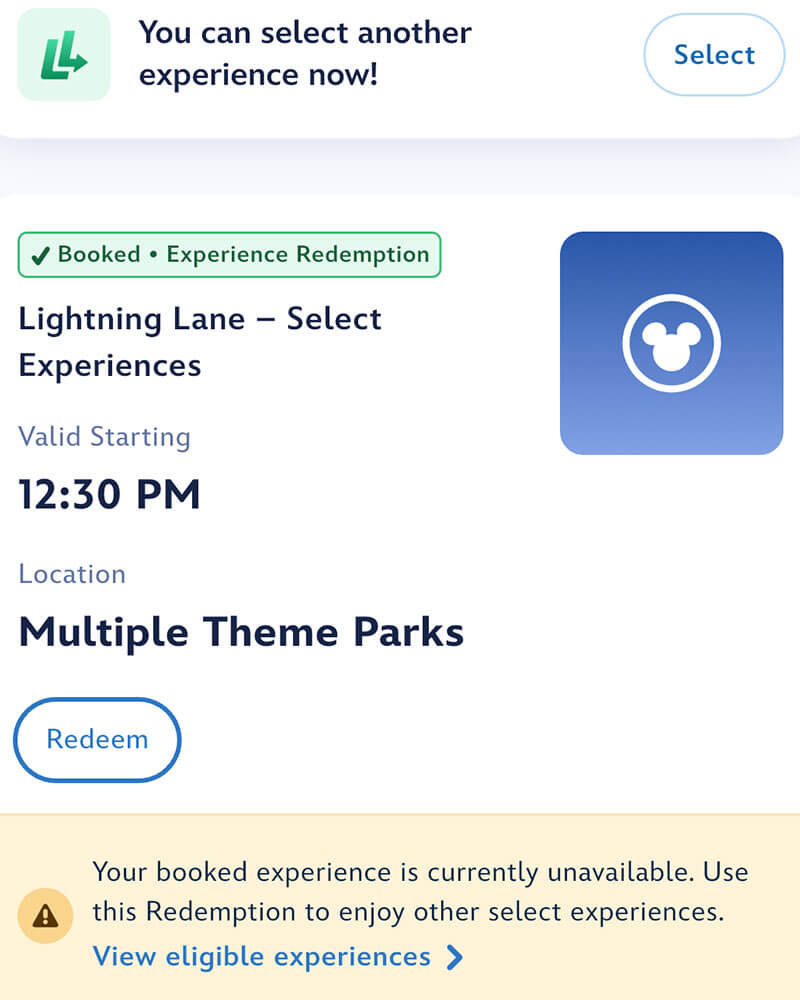
Multiple Experiences Pass/ Select Experiences Pass Due to Ride Breakdowns
You might be thinking, "What are Multiple Experiences Passes?" If a ride breaks down in your Lightning Lane selection window, you'll likely receive a Multiple Experiences Pass. We have a whole post on those for further reading, but basically, your Lightning Lane turns into this more flexible pass. Essentially, it extends the expiration of your original Lightning Lane redemption window to the end of the day. You can save it and use it for the ride that broke down once it reopens. Or you can use it on a different ride.
All Multiple Experiences Passes are not created equally. Some can be redeemed for popular attractions such as Space Mountain and Indiana Jones Adventure. Some cannot. You can tap the Multiple Experiences Pass and then tap "Get Details" and "View eligible experiences." It will give you a list of available options and unavailable options. When park hopping, these passes are good for use in either park. And at Disney California Adventure, you can use it on rides that don't even have a Lightning Lane normally! At Disneyland, you may be able to use it on Pirates of the Caribbean, which no longer has a normal Lightning Lane!
If you hoppen to be in a waiting period to choose your next Lightning Lane when that ride goes down, the Multiple Experiences Pass waives the waiting period. Go ahead and make a new selection for a new ride or the ride that just broke down. Plus, you get to keep your Multiple Experiences Passes.
The best place to find Multiple Experiences Passes is under "My Plans."
Disneyland Kids' Summer Ticket Deal! Save up to $368 on Kids' Summer Tickets at Disneyland® Resort, including a FREE Park Hopper ticket upgrade on select tickets. Plus, get a FREE $20 Dining Dollars credit with each ticket purchase, which can be used to save 15% on Disney Gift Cards!
How to Find Your Hotel Guest Lightning Lanes
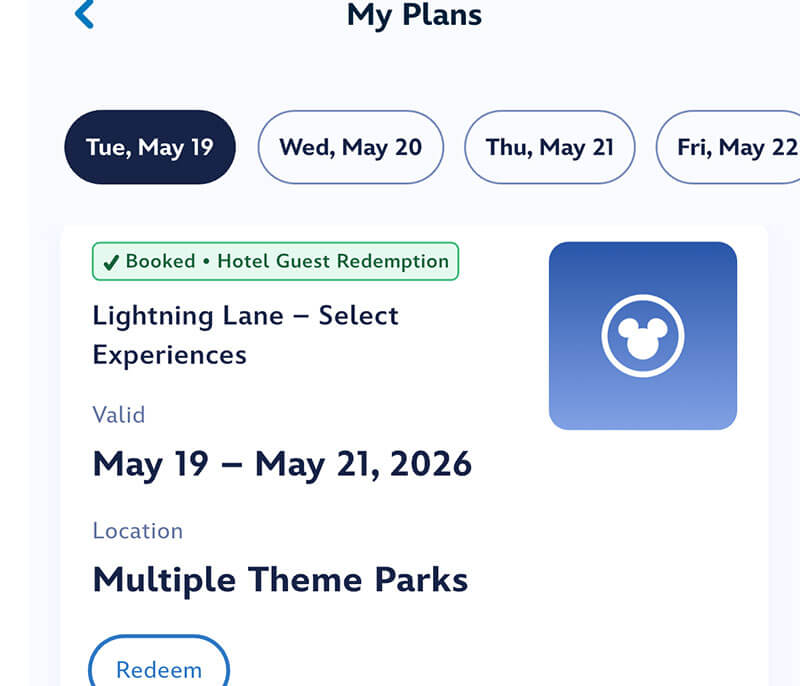
Registered guests of the Disneyland Resort hotels each get one Lightning Lane Multi Pass attraction per person, per stay. You can find these in "My Plans." You can tap "redeem" and scan the code at the attraction.
How to Redeem a Lightning Lane or Multiple Experiences Pass
There are several ways to redeem your Lightning Lanes (or Multiple Experiences Passes).

You'll enter the Lightning Lane for the attraction. There are scanners. You can redeem with one of the following options:
- The Redemption code — Tap "Redeem" for the Lightning Lane - Select the Experiences option you want to redeem (find it under "My Plans"). It will present a code, and you'll slip your phone into the slot of the reader. Be sure to redeem the codes for every rider (or else the people not scanned will not be eligible for the next ride you select). This method is the most accurate, especially if you have a mix of tickets and Multiple Experiences Passes.
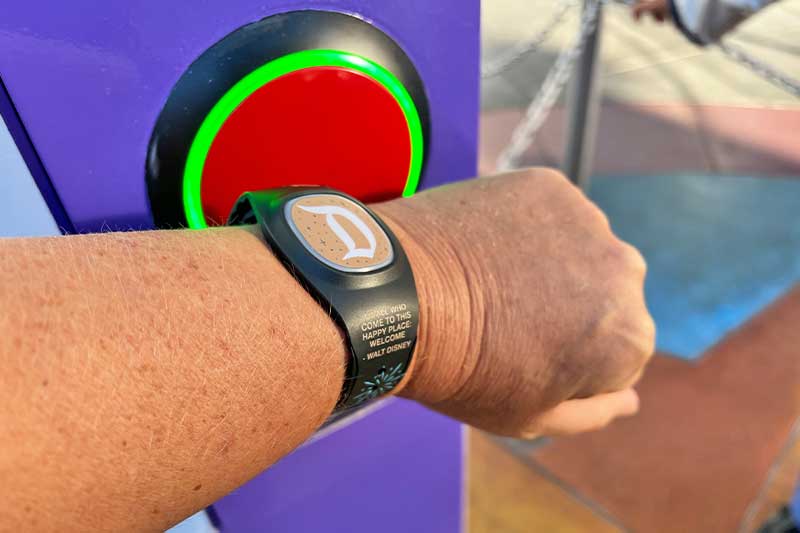
- Tap a MagicBand+. Tap your band to the circle on the reader.
- Scan a park ticket. In a pinch, scan your park ticket (physical ticket or from the Disneyland app).
Once you have scanned your whole party in, go ahead and book your next Lightning Lane. We try to select one before we enter a ride building. Phone signals can get weaker as you go deeper into some attraction buildings.
For Disney World fans, there is just one redemption spot to scan for each ride at Disneyland. Once you redeem your Lightning Lane, you can immediately book a new one.
How to Use Lightning Lane Without Having to Book

There is an easier way to access every Lightning Lane (Multi and Single) in both parks without having to book or schedule them. Lightning Lane Premier Pass allows the user one-time access to every available Lightning Lane whenever they want. The service does come with a hefty price tag. It's $300 to $449 per person, per day. You can purchase the service in the Disneyland app up to 7 days in advance. It also comes with PhotoPass benefits.
Using the PhotoPass Benefits of Lightning Lane Multi Pass

One of the perks of having Lightning Lane Multi Pass is that all your PhotoPass photos (from photographers and rides) are included.

Whenever you take a photo, link the photos to the account of someone in the party who has Lightning Lane Multi Pass. You can do it with the tap of MagicBand+ or by scanning a code in the Disneyland app. On the menu screen in the app, there is a Link Photos box. Show the PhotoPass code to the photographer. For rides, type the photo number in. (There is no MagicBand ride photo capture at Disneyland like there is at Disney World.) To view the photos, you scroll further down (in the menu) to the Photo Gallery. (All guests get free ride PhotoPass downloads at this time.)
Another perk that comes with Lightning Lane Multi Pass is PhotoPass lenses. You can locate the lenses in the Disneyland app to entertain yourself in line by creating fun, themed selfies and photos with characters, backdrops and other special effects.
Want to get the best possible deal on your Disneyland tickets with Lightning Lane Multi Pass? Purchase discount, multi-day Disneyland tickets through Undercover Tourist. The price can go up several dollars per ticket if you wait to purchase Lightning Lane Multi Pass after you have entered the theme park each day.
Related: The Lightning Lane Expert Take: Using Lightning Lane With a Group at Disneyland
Related: Which Rides Are Available on Lightning Lane at Disneyland?
Keep hopping!